# Master Attachment References and Display with $ref Tags
GROWI's $ref family of tags lets you embed attachment links, display images, and build galleries — all within your page content.
You can reference attachments by filename or by ID, and even pull in attachments from other pages.
# Flexible ways to use these tags
The $ref tags do more than just "paste an attachment." By combining their options, you can enable workflows like these:
- Reference by filename
Re-upload a file under the same name and a reference such as
$ref(design.pdf)keeps pointing at the latest file. No page edits are needed — handy for versioned manuals or recurring reports. - Reference and aggregate attachments across other pages
With
pageorprefix, you can list files attached to another page or an entire page subtree in one place. Keep the files consolidated on one page while surfacing them from an index page. - Lay out multiple images as a grid or gallery
The
gridoption of$refsimg, or the$gallerytag, displays multiple images in an aligned grid or gallery. Great for screenshot collections or photo logs. - Filter files with a regular expression
Use
regexpto limit a listing or display to files matching a specific extension or naming convention.
The details and options for each tag follow.
# $ref tag — Embed a link to an attachment
Embeds a link to an attachment file.
# Syntax
$ref(file.txt)
$ref(file.txt, page=/somewhere/page)
$ref(5f17286fd7fbb1104fdbd111, page=/somewhere/page)
# Options
| Option | Required | Description |
|---|---|---|
file | One of these | Filename of the attachment to reference (default: first argument) |
id | One of these | Attachment ID of the file to reference (default: first argument) |
page | Optional | Page path to search for the file (default: current page) |
# Examples
- Drop-in replacement: Write
$ref(price-list.xlsx)once, then re-upload under the same filename each month to always keep a link to the latest version. - Reference a file on another page: With
$ref(policy.pdf, page=/legal/policies), you can link to the same file from many pages while the attachment itself stays consolidated on a single page.
# $refs tag — Display a list of attachments
Displays a list of attachments found on the specified page or pages.
# Syntax
$refs(/somewhere/page, regexp=/^file.*\.txt$/)
# Options
| Option | Required | Description |
|---|---|---|
page | Optional | Target page path to search attachments (default: first argument or current page) |
prefix | Optional | Page path prefix to search attachments |
depth | Optional | Page depth to search attachments |
regexp | Optional | Regular expression to filter files by name |
# Examples
- Aggregate attachments from descendant pages:
$refs(prefix=/project/minutes)collects files scattered across the meeting-minutes subtree into a single index page. - Filter by extension:
$refs(/reports, regexp=/\.pdf$/)lists only the PDF attachments on the target page.
# $refimg tag — Display an attachment image
Displays an attached image file. You can specify the display size and alt text.
# Syntax
$refimg(pict.png, width=50%, alt=Pic)
$refimg(5f17286fd7fbb1104fdbd111, width=50%, alt=Pic)
# Options
| Option | Required | Description |
|---|---|---|
file | One of these | Filename of the attachment to reference (default: first argument) |
id | One of these | Attachment ID of the file to reference (default: first argument) |
width | Optional | Width (e.g. width=200px, width=50%) |
height | Optional | Height (e.g. height=100px) |
max-width | Optional | Max width (e.g. max-width=200px, max-width=50%) |
max-height | Optional | Max height (e.g. max-height=100px) |
alt | Optional | Alt text |
# Examples
- A replaceable diagram: Write
$refimg(architecture.png, max-width=600px)to embed a figure. Re-upload the diagram under the same filename and the embedded figure stays current. - Reuse a shared logo or banner: Reference an image on a shared page with
$refimg(logo.png, page=/assets)to reuse the same image across multiple pages.
# $refsimg tag — Display a list of attachment images
Displays a collection of attached images from the specified page or pages. Grid layout is also supported.
# Syntax
$refsimg(/somewhere/page, regexp=/^.*\.png$/, max-width=200)
$refsimg(prefix=/somewhere, grid=autofill, grid-gap=1px)
# Options
| Option | Required | Description |
|---|---|---|
page | Optional | Target page path to search attachments (default: first argument or current page) |
prefix | Optional | Page path prefix to search attachments |
depth | Optional | Page depth to search attachments |
regexp | Optional | Regular expression to filter files by name |
width | Optional | Width (e.g. width=200px, width=50%) |
height | Optional | Height (e.g. height=100px) |
max-width | Optional | Max width (e.g. max-width=200px, max-width=50%) |
max-height | Optional | Max height (e.g. max-height=100px) |
display | Optional | display property for each image (disabled when grid is set; defaults to block) |
grid | Optional | Grid layout setting (see table below) |
grid-gap | Optional | Grid gap (e.g. grid-gap=1px) |
# grid option values
| Value | Description |
|---|---|
autofill | Auto-fill grid with 64px tracks (same as autofill-md) |
autofill-xs | Auto-fill grid with 32px tracks |
autofill-sm | Auto-fill grid with 48px tracks |
autofill-md | Auto-fill grid with 64px tracks |
autofill-lg | Auto-fill grid with 128px tracks |
autofill-xl | Auto-fill grid with 192px tracks |
col-2 to col-6 | Fixed column count grid (2–6 columns) |
# Examples
- Show a screenshot collection in a grid:
$refsimg(prefix=/manual/screens, grid=col-3, grid-gap=4px)arranges the screenshots under your manual into a three-column grid. - A thumbnail listing: With an
autofillvariant such as$refsimg(/gallery, grid=autofill-sm), you get a thumbnail listing that automatically wraps to fit the track width even as the number of images changes.
# $gallery tag — Display images in a gallery layout
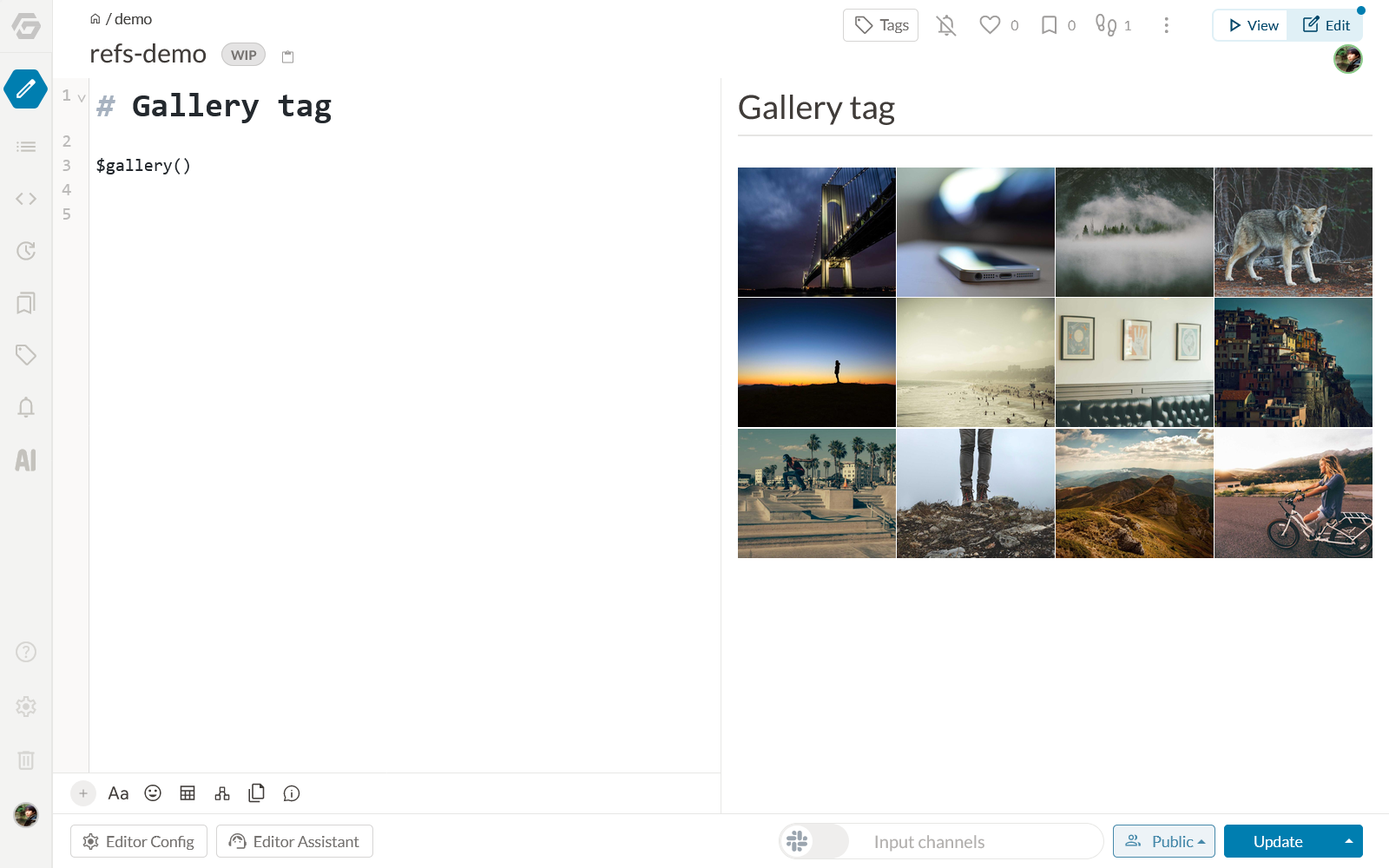
A shorthand for $refsimg(grid=col-4, grid-gap=1px).
Displays attachment images from the specified pages in a 4-column gallery grid.
# Syntax
$gallery(prefix=/somewhere/page)
# Options
Accepts the same options as $refsimg.
# Examples
- Photo log / gallery page:
$gallery(prefix=/events/2026)quickly assembles the photos attached to pages under an event into a 4-column gallery. Switch to$refsimgwhen you need finer layout control.
# Tips: Access control and lifecycle are tied to the source page
Keep the following in mind when you reference attachments from other pages with the $ref tags.
An attachment's permissions and lifecycle follow its source page
An attachment's access permissions (who can view it) and lifecycle (deletion and so on) are bound to the page it is attached to. The $ref tags only display a reference — they do not override the referenced file's permissions or give it independent ones.
As a result, the behavior is as follows. This is exactly how GROWI's basic rule works: an attachment follows the permissions of the page it is attached to.
- Visibility follows the source page: Users without view permission on the source page will not see the attachment, even when it is referenced via a
$reftag. Even if the referencing page itself is public, a user without permission may not see the file when the source page is restricted. - Affected by deletion and moves: When the source page or the attachment is deleted, the referencing tag stops displaying it.
When you build cross-page references into your workflow, align the visibility of the referenced pages (or consolidate attachments on a page everyone can view) to avoid cases where the content appears for some users but not others.