# Using GROWI AI Agent
# What is GROWI AI Agent?
GROWI AI Agent is an agent-driven AI assistant that answers your questions based on the information in GROWI. In GROWI v8.0, it was completely redesigned into a mechanism that searches and reasons on its own to meet your goal.
Instead of asking a pre-trained set of pages, GROWI AI Agent reads your question, runs a full-text search across GROWI, and actively opens and reads the pages it finds while composing its answer. It replies in the same language as your question.
WARNING
To use GROWI AI Agent, an administrator must enable the AI feature. If the "GROWI AI Agent" icon in the left sidebar is grayed out and cannot be clicked, it has not been enabled yet.
For administrators: for how to enable the AI feature and configure providers and models, see Setting up and managing GROWI AI Agent.
# Opening GROWI AI Agent
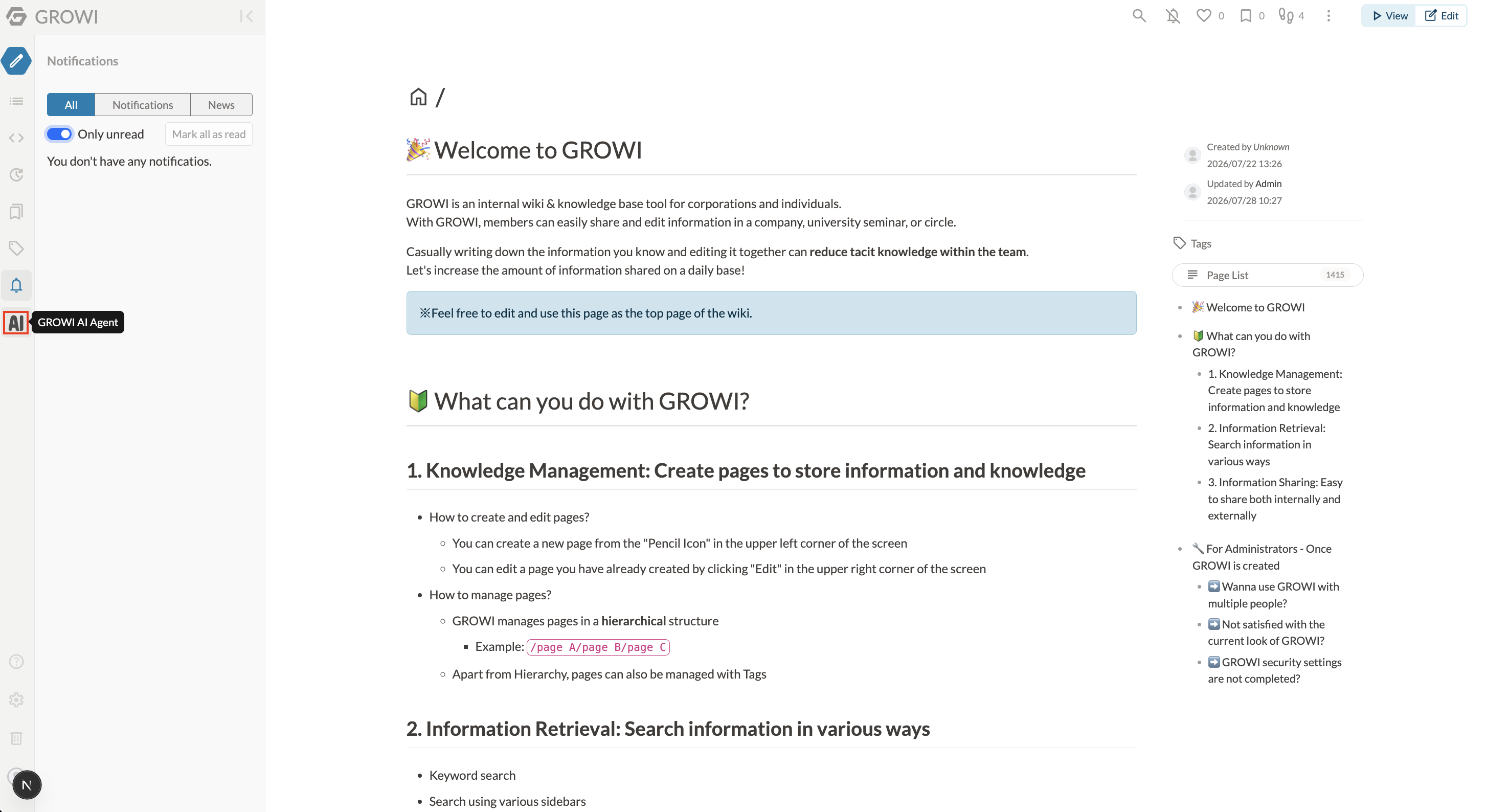
Click the "GROWI AI Agent" icon in the left sidebar.
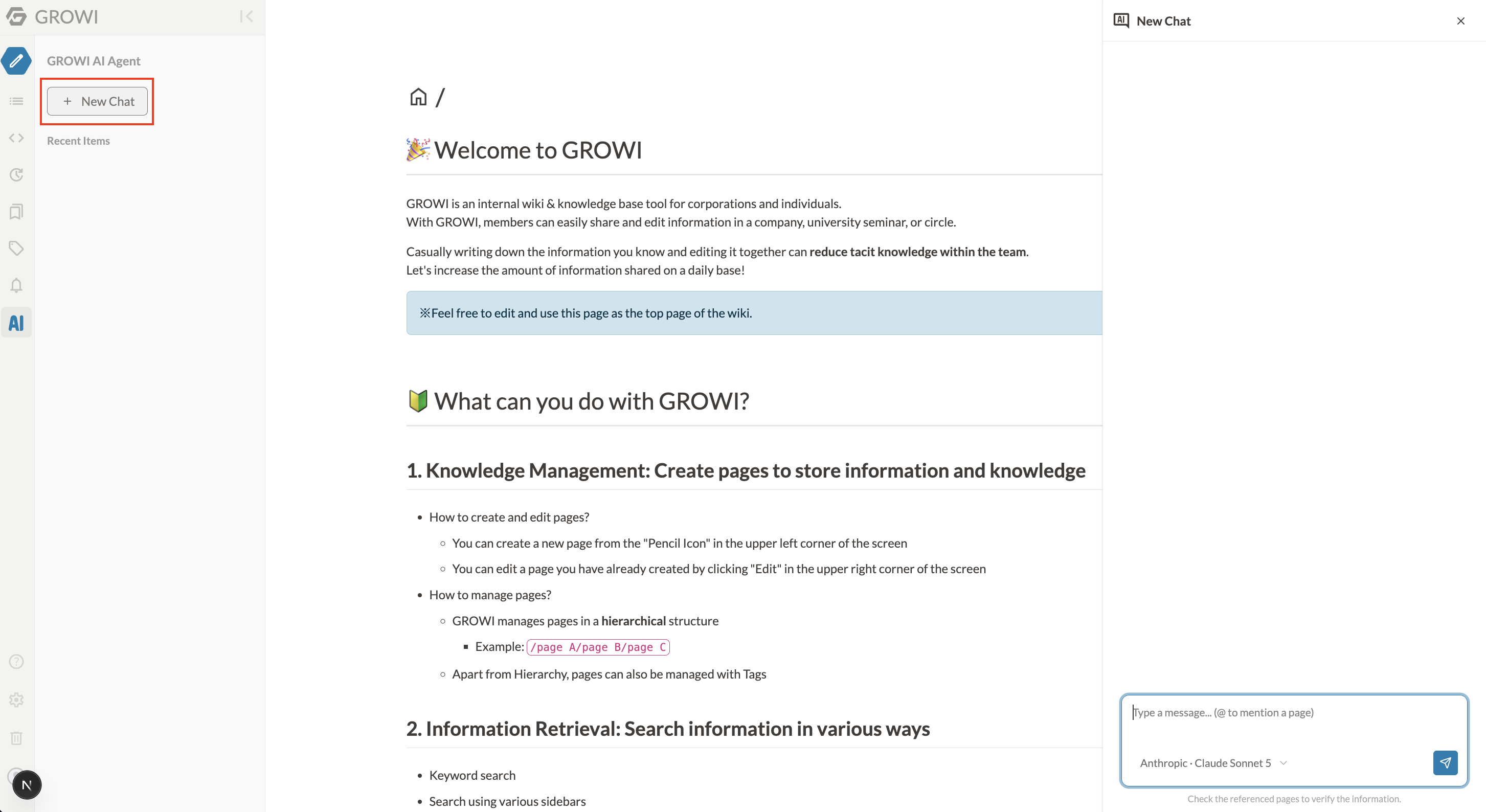
The AI panel opens. Click the "New Chat" button to show the chat window on the right side of the screen.
# Sending a message
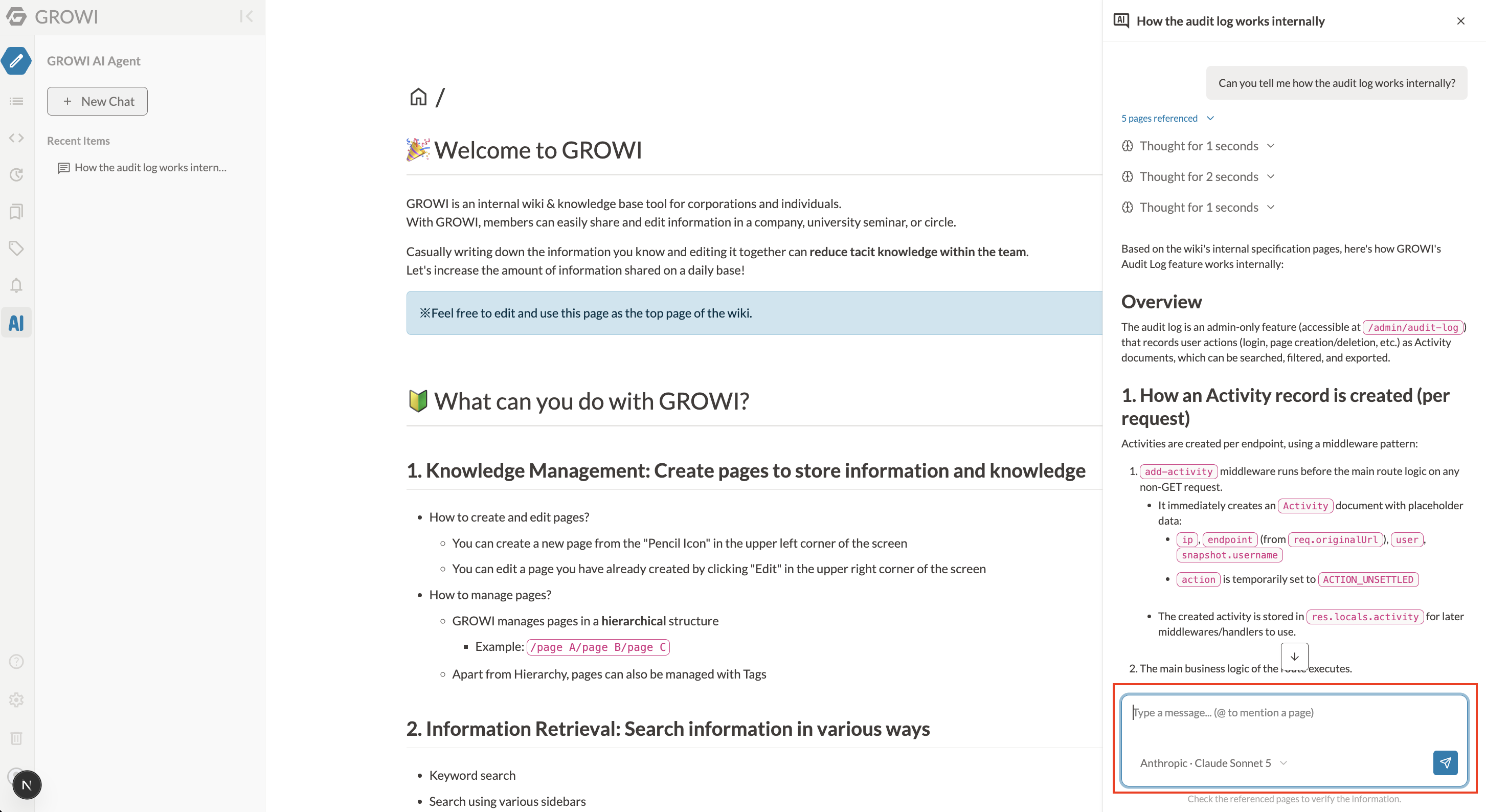
Type your question into the input field at the bottom of the chat window and press Enter to send it. To insert a line break, use Shift + Enter.
The answer is generated as GROWI AI Agent searches GROWI and reads related pages, so it takes a little while to appear. While an answer is being generated, you cannot send another message.
# Choosing a model
From the model selector below the input field, you can choose the AI model used for answers. The selectable models are the ones allowed by your administrator. They are grouped by provider (OpenAI / Anthropic / Google / Azure OpenAI).
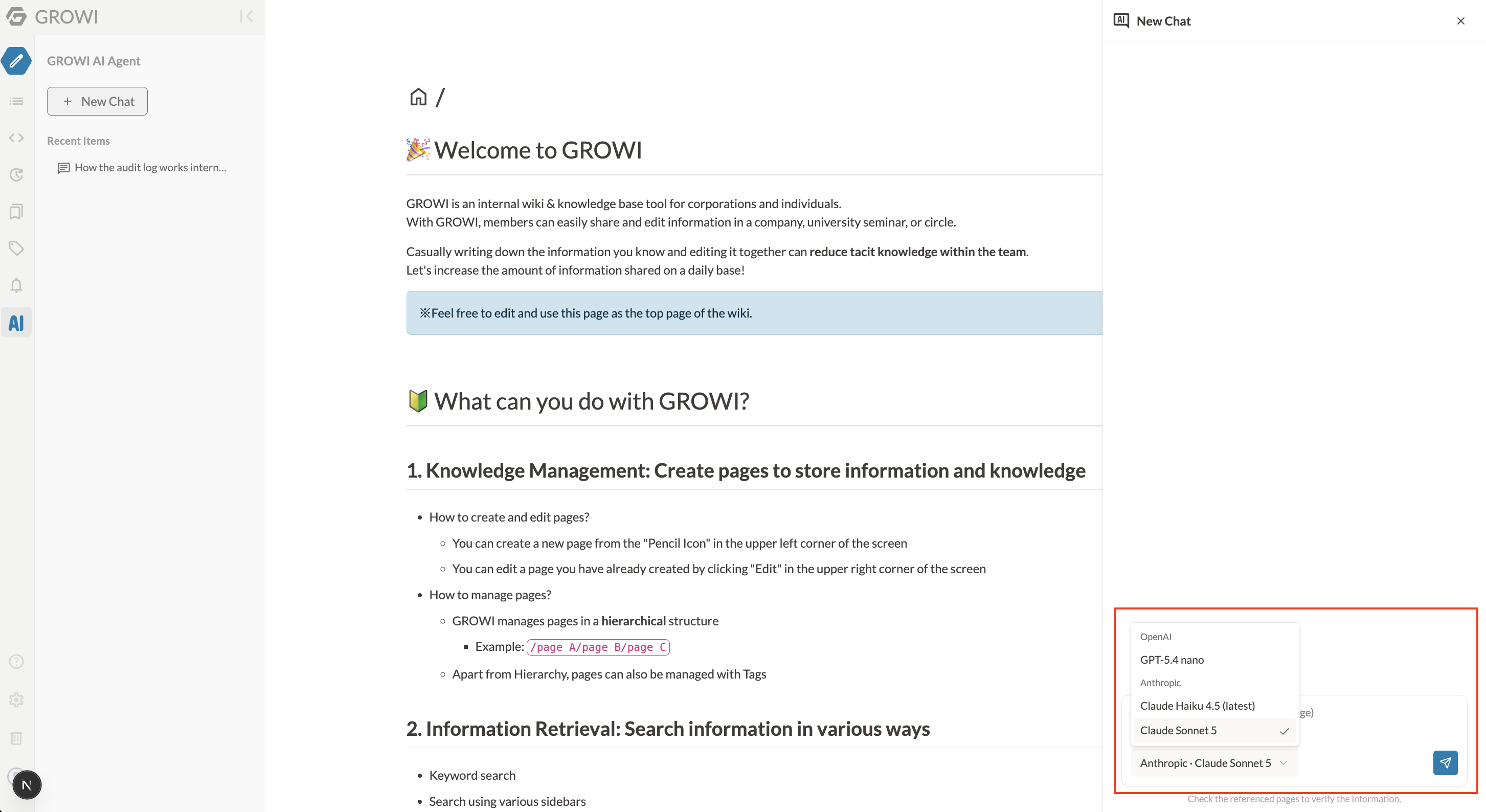
Your choice is remembered and reused in later chats. You can also switch models in the middle of a conversation.
# Referencing pages with @
To have the AI reference a specific page in your question, type @ in the input field. When you type a page name after @, pages you are allowed to view appear as candidates.
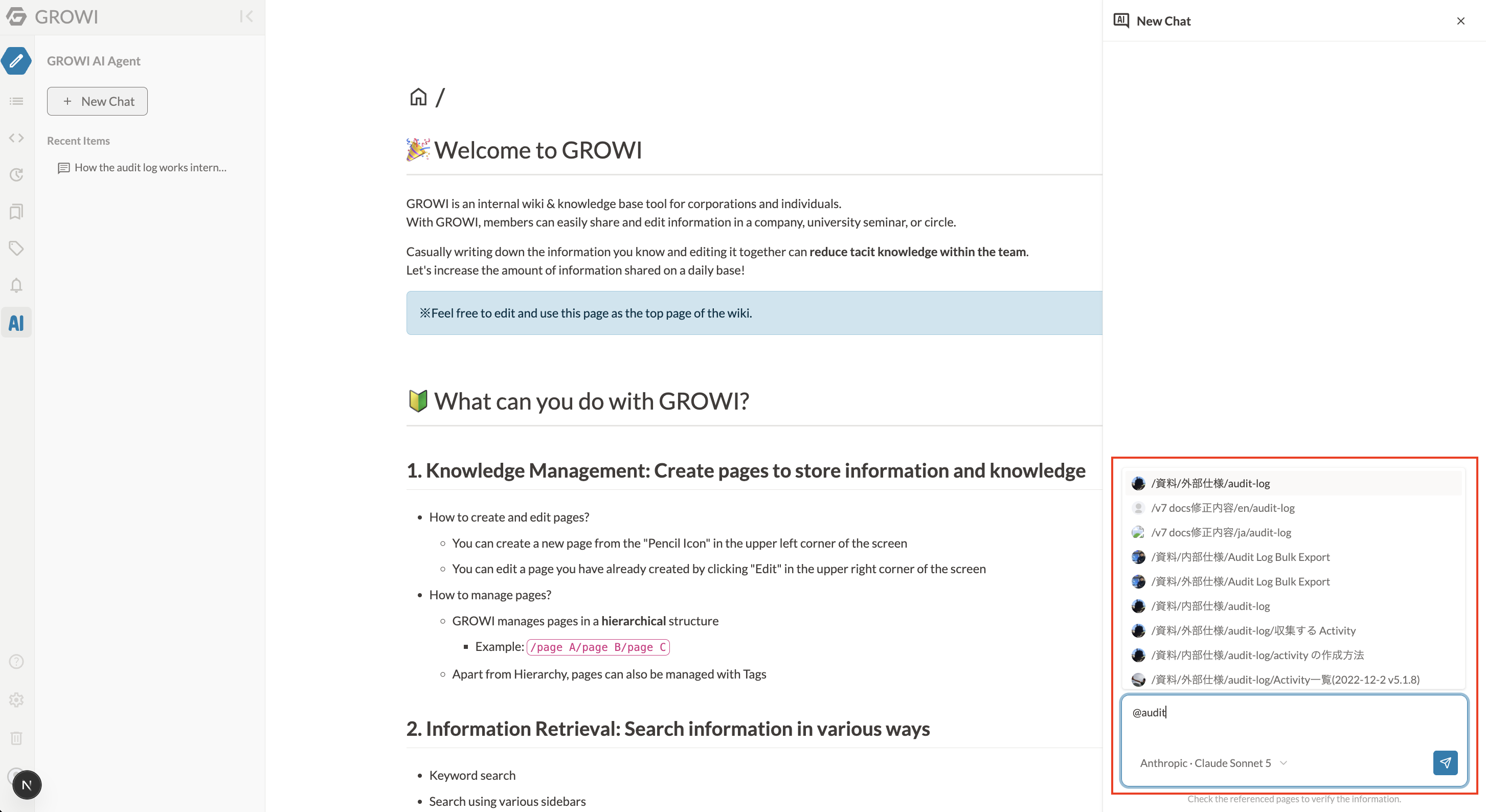
@is activated when typed at the beginning of a line or right after a space.- Candidates are narrowed as you type. Move through candidates with the arrow keys, and confirm with the Enter or Tab key. Press Esc to close the candidates.
- When confirmed, the path of the selected page is inserted into the input field. You can click the inserted path to open that page.
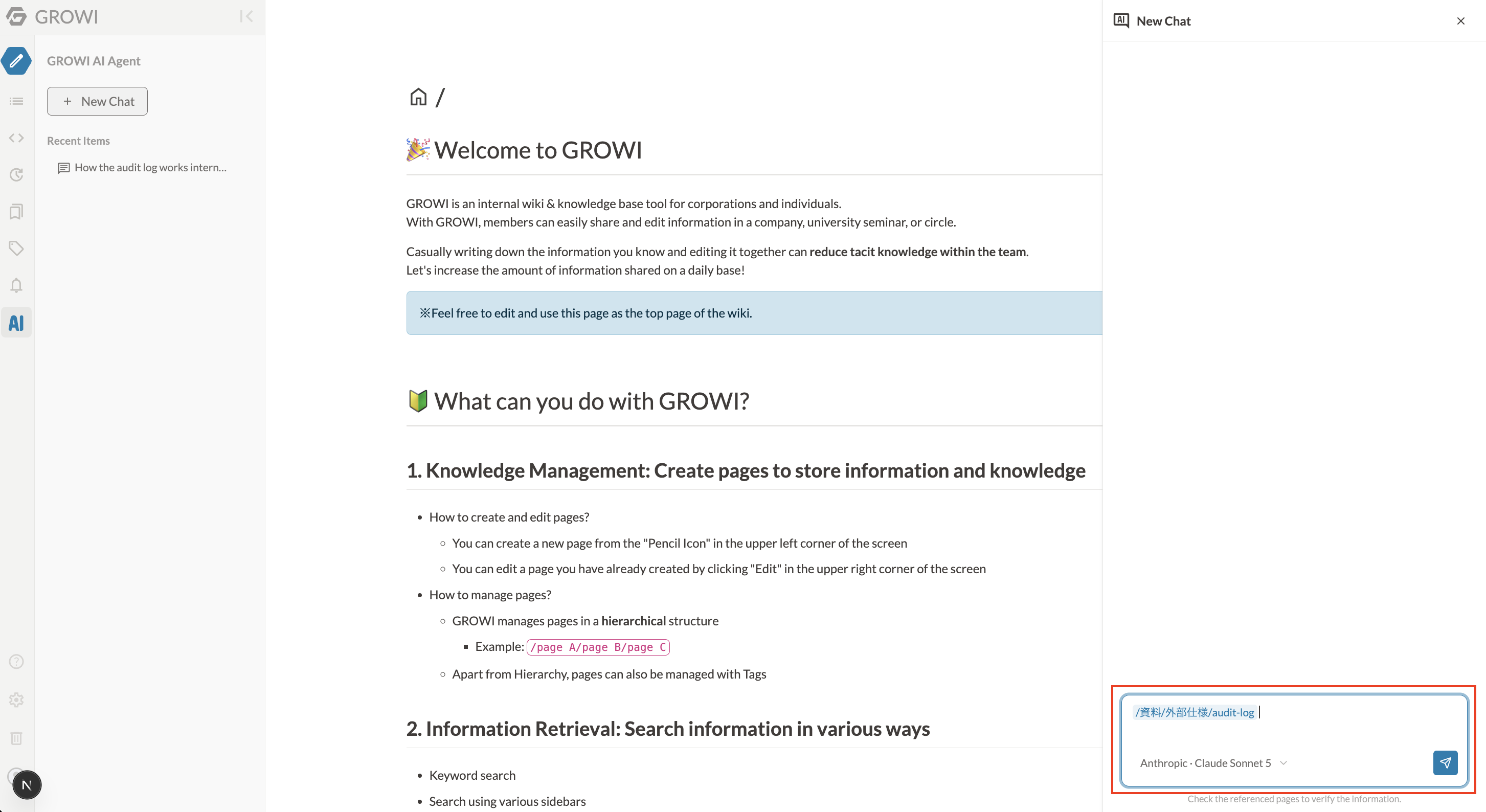
Only pages you are allowed to view appear as candidates. Pages you do not have permission for are not shown.
TIP
A page referenced with @ is not passed in full at that moment. GROWI AI Agent is given the page path as a hint, and opens and reads that page only when it determines it is necessary.
# Checking the referenced pages
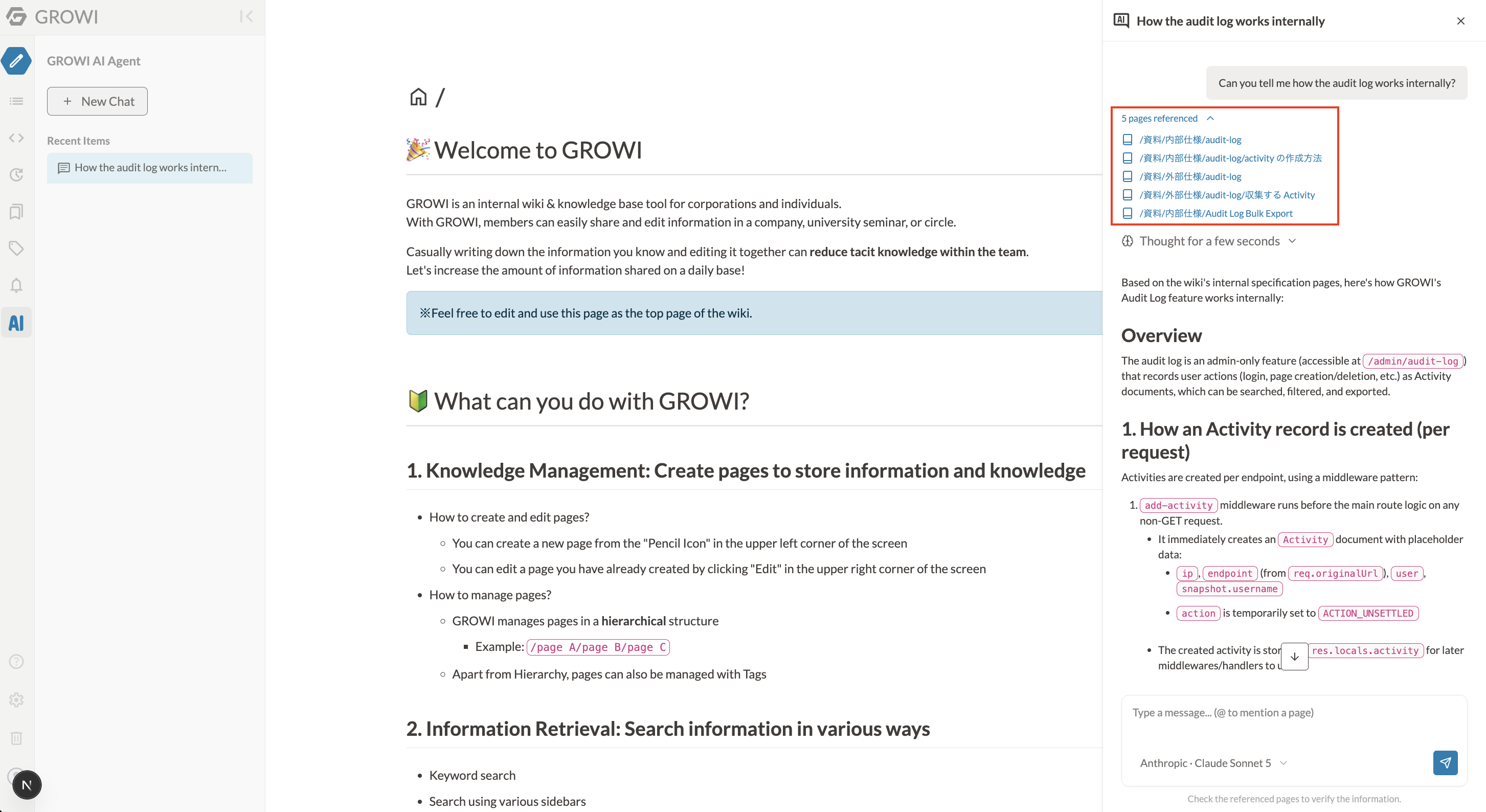
GROWI AI Agent lists the pages it actually opened and read while composing the answer as "referenced pages" above the answer. Each item is a link to the page, so you can verify the basis of the answer.
WARNING
The answers from GROWI AI Agent are not always accurate. For important information, open the referenced pages and verify the content.
# Regenerating and copying an answer
The most recent answer has retry and copy actions.
- Retry: Regenerate the answer for the same question.
- Copy: Copy the answer content to the clipboard.
# Chat history (threads)
Your chat exchanges are automatically saved as threads. You can review past threads in the AI panel opened from the "GROWI AI Agent" icon in the left sidebar.
- The AI panel's "Recent items" lists past threads in newest-first order.
- A thread title is generated automatically from the content of the first exchange.
- Selecting a thread from the list lets you resume that conversation.
- You can delete a thread from the trash icon shown when you hover over it.
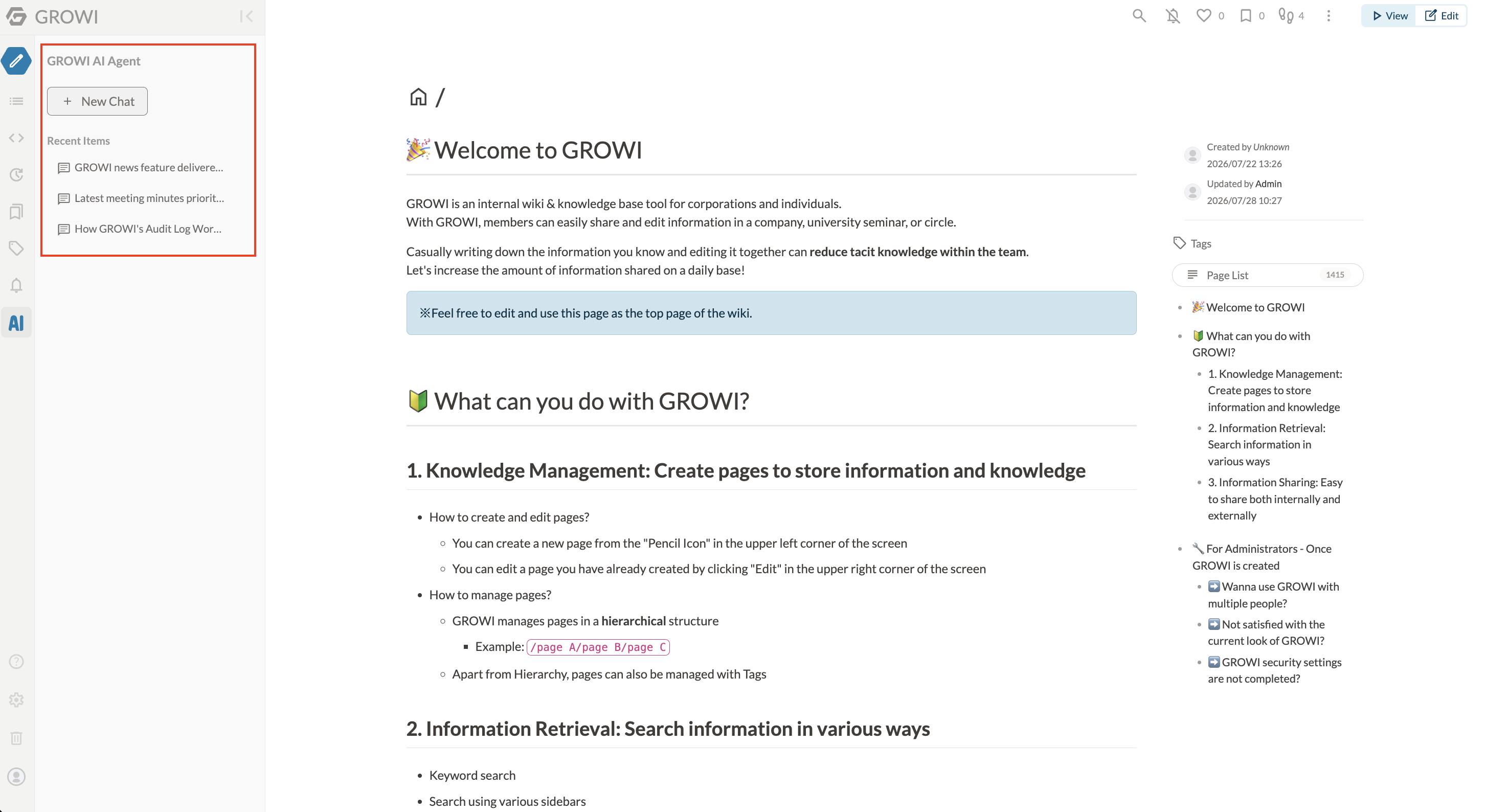
Threads are private to you and are not visible to other users. You also cannot delete other users' threads.
# When an answer stops partway
If an answer ends before it is fully generated, a message explaining the reason is shown below the answer. The main cases are:
- The answer reached the maximum length
- The processing-step limit was reached
- Stopped by the content policy
- An error occurred
# When an error is shown
If an answer could not be generated due to a communication or model problem, an error message is shown. You can try generating the answer again from "Retry".
If errors occur repeatedly, change the selected model, or ask your administrator to check the AI feature configuration.